Start here
Create an AtlasTexture for each frame, assign the same source atlas, and enter that frame's own x, y, width and height. Unequal frames and gaps need explicit rectangles; a single regular-grid cell size cannot describe this sheet.
Three editable native texture resources that display the complete 12 × 17, 19 × 13 and 15 × 22 regions from one original PNG.
What you need
The CC0 70 × 32 irregular sheet contains green, blue and orange artwork with different dimensions and intervening gaps. The project includes its exact region resources and an editor scene.

Tested with: Godot 4.7.2-stable, Compatibility renderer, macOS 27.0.1/arm64. Native region resources, actual Inspector views and rendered crops were checked.
1. Open a native AtlasTexture resource
- Extract the ZIP, import
godot-sprites/project.godot, and wait for the PNG imports. - Open
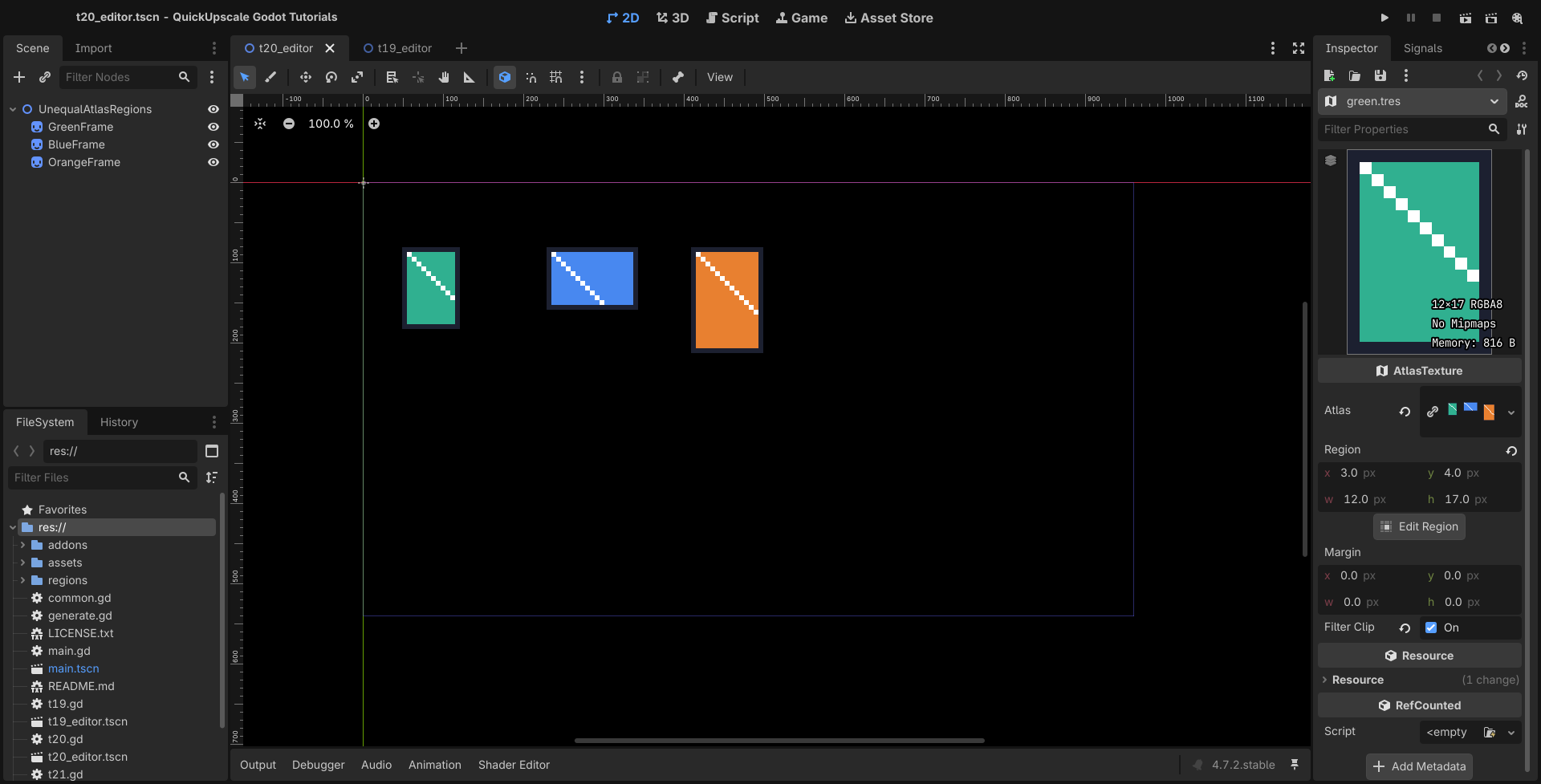
t20_editor.tscnand selectGreenFrame. - Expand its Texture resource in the Inspector. Its AtlasTexture uses
assets/irregular-sheet.pngas Atlas. - Inspect the Region fields. For a new frame in your own scene, create an AtlasTexture in the texture slot, assign the atlas, then enter its region or use Edit Region to select it visually.
2. Enter each frame's own rectangle
Coordinates begin at the source PNG's top-left. Each tuple is x, y, width, height, in original image pixels. The resources in regions/ already contain these known values:
| Frame | Region | Resource |
|---|---|---|
| Green | 3, 4, 12, 17 | regions/green.tres |
| Blue | 23, 3, 19, 13 | regions/blue.tres |
| Orange | 48, 6, 15, 22 | regions/orange.tres |
Keep Margin at zero for these crops. Margin adjusts the cropped texture's layout; it does not specify gaps between source frames. Keep Filter Clip enabled as in the project, while treating sampling and other atlas artifacts as separate rendering checks.
The green resource's essential values are:
var green := AtlasTexture.new()
green.atlas = load("res://assets/irregular-sheet.png")
green.region = Rect2(3, 4, 12, 17)
green.margin = Rect2()
green.filter_clip = true
These are authored rectangles from a known fixture. The example does not detect artwork boundaries or segment an arbitrary packed atlas automatically.
3. Render and compare the three regions
From the folder containing the extracted project, run:
godot --headless --editor --path godot-sprites --import
godot --headless --path godot-sprites --script verify.gd
godot --path godot-sprites -- --case=T20 --hold
The source sheet appears above the three extracted textures. Check that each diagonal and border is complete and that the frame dimensions differ as declared.
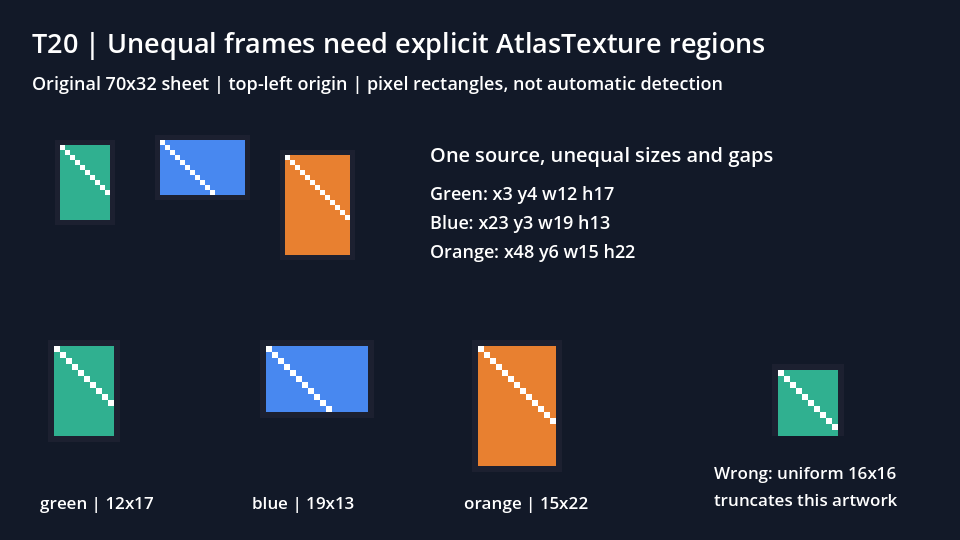
The resource-image checks matched every original RGBA pixel in all three declared regions. Independent decoding also checked the actual rendered crops, rather than relying on the region numbers alone.
4. Recognize a crop that cannot fit the frame
The separate Rect2(0, 0, 16, 16) example visibly truncates the green artwork. Its correct frame is 12 × 17 and begins at (3, 4); treating the sheet as a regular 16 × 16 grid loses part of that region.
Also keep each rectangle inside the 70 × 32 source. The sample's helper rejects a region beginning at x65 with width12 because it extends past the right edge. That check belongs to this example; it is not an automatic irregular-atlas repair service.
Use the regular-sheet animation workflow when all cells are equal. For this irregular source, retain the explicit native resources and their dimensions.