Start here
Assign a SpriteFrames resource to AnimatedSprite2D, add the sheet's eight cells in row-major order, set the animation to 8 FPS and enable looping. The PNG supplies pixels; you choose the frame order and timing.
A native Godot animation playing cells 0–7 in order, with an editable resource and a check for stopped playback caused by Speed Scale 0.
What you need
The original CC0 64 × 32 numbered sheet contains four columns, two rows and eight complete 16 × 16 cells. The downloadable Godot project includes this PNG, walk_frames.tres and an editable animation scene.

Tested with: Godot 4.7.2-stable, Compatibility renderer, macOS 27.0.1/arm64. Native playback and the actual SpriteFrames editor panel were inspected.
1. Import the project and inspect SpriteFrames
- Extract the ZIP and import
godot-sprites/project.godotinto Godot 4. Let its original PNG assets finish importing. - Open
t19_editor.tscnand selectAnimatedSprite2D. - Open its Sprite Frames resource. The bottom SpriteFrames panel contains the
defaultanimation, eight numbered frames, looping enabled and speed 8.0 FPS.
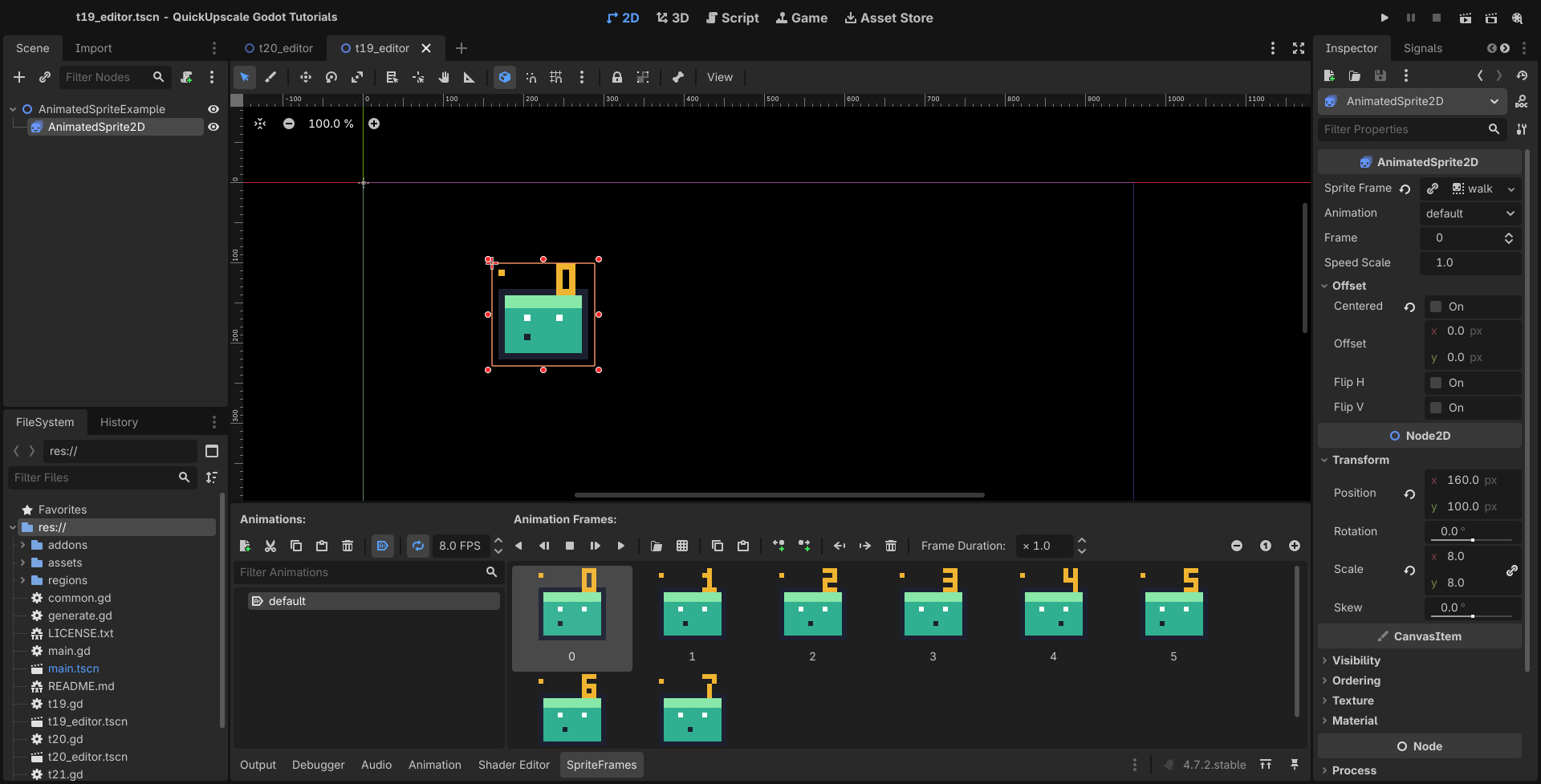
The provided scene already has the resource assigned. To rebuild it yourself, create a new SpriteFrames resource, choose Add frames from a sprite sheet, select numbered-sheet.png, and set horizontal/vertical counts to 4 and 2. Add the numbered cells in order from the top row, then the bottom row. Set speed to 8.0 FPS and enable looping.
2. Check frame order and timing explicitly
The sequence is 0, 1, 2, 3, 4, 5, 6, 7, then 0 again. Each frame in the supplied resource has duration multiplier 1.0, so 8 FPS schedules a nominal 125 ms per frame.
For a node named AnimatedSprite2D, the equivalent setup using the included resource is:
@onready var sprite: AnimatedSprite2D = $AnimatedSprite2D

func _ready() -> void:
    sprite.sprite_frames = load("res://walk_frames.tres")
    sprite.sprite_frames.set_animation_speed("default", 8.0)
    sprite.sprite_frames.set_animation_loop("default", true)
    sprite.speed_scale = 1.0
    sprite.play("default")
Check the numbered artwork rather than assuming selection order. A plain PNG cannot recover an animation's original FPS, names or tags; 8 FPS is the explicit choice for this example.
3. Run the native playback check
From the directory containing the extracted godot-sprites folder, run these commands with your installed Godot executable:
godot --headless --editor --path godot-sprites --import
godot --headless --path godot-sprites --script verify.gd
godot --path godot-sprites -- --case=T19 --hold
The native task checks actual frame_changed signals across two loops and then leaves the completed window open. Its eight reference cells appear below the large sprite. Close that window normally when finished.
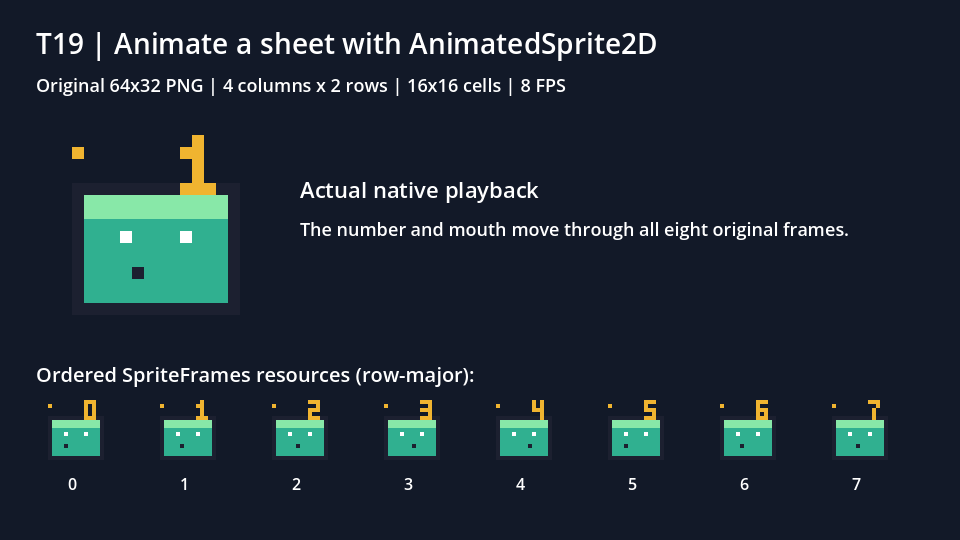
The recorded run observed 17 ordered frame-change events at about 8.10 FPS over its measured interval. That is an execution observation around an 8 FPS setting, not a frame-presentation guarantee for every device.
4. Check zero speed and partial-cell geometry
Playing but motionless: inspect Speed Scale. At 0, the node can report that it is playing while its frame does not advance. Set it to 1.0 for the configured speed. The project verified no advancement during a 0.3-second zero-speed interval.
Wrong grid size: 17 px does not divide the 64 px sheet width into complete cells. The sample's geometry helper rejects that partial grid. Use the known 16 × 16 cells and confirm that all eight numbers remain whole; this does not imply every editor import dialog rejects bad geometry automatically.
If the sequence is correct but one sprite looks blurry, investigate its inherited and per-node texture filters. Playback timing and sampling are separate settings.