Start here
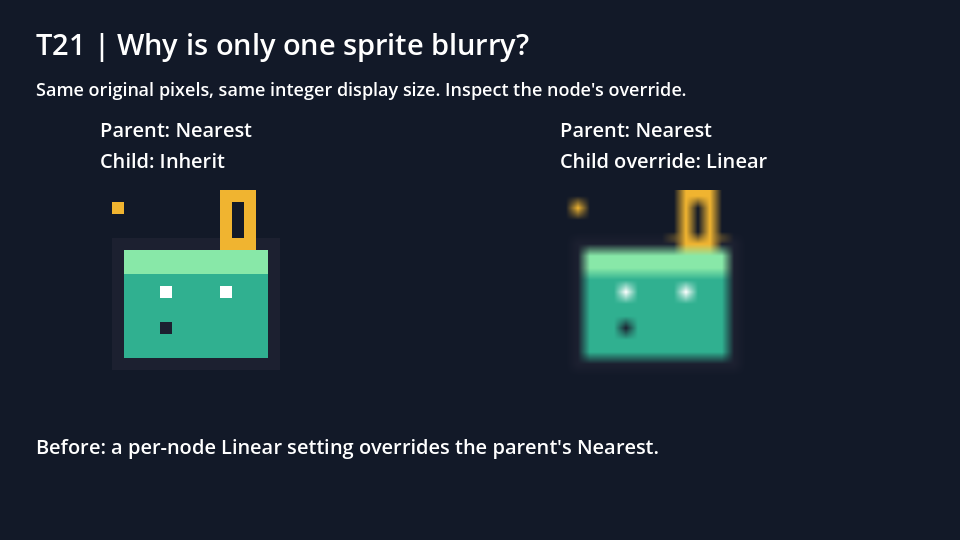
Inspect the affected sprite's Texture → Filter setting and its CanvasItem ancestors. An explicit child Linear filter overrides a parent's Nearest setting. Set the child to Inherit when the ancestor supplies the intended Nearest filter.
Two identical native sprites render the same after removing one child override, while a second test shows that a Linear ancestor still makes inherited sprites blurry.
What you need
Two sprites use the same 16 × 16 cell from the original numbered PNG, with the same integer 12× node scale. One is crisp and one is blurred. The project creates this deliberate filter mismatch in t21.gd.

Tested with: Godot 4.7.2-stable, Compatibility renderer, macOS 27.0.1/arm64. Native before/after/ancestor-boundary captures were independently decoded.
1. Reproduce the mismatch with an unchanged source
Import the extracted godot-sprites/project.godot. From the folder containing it, run the controlled case and save its before/after images:
godot --headless --editor --path godot-sprites --import
godot --path godot-sprites -- --case=T21 \
  --out="$PWD/godot-filter-captures" --hold
The task runs all three filter states, saves their PNGs in the chosen output directory and leaves the final corrected window open. The initial state is intentionally brief; inspect t21-before.png to compare it with the final state.
2. Check the child and the ancestor supplying its filter
- In your affected scene, select the blurry sprite and inspect its CanvasItem Texture → Filter setting.
- If it is explicitly Linear, inspect the parent and relevant CanvasItem ancestors to find which filter an inherited child would receive.
- With the intended ancestor set to Nearest, change the affected child to Inherit and compare it against the crisp reference at the same transform.
The controlled sample uses these equivalent properties:
parent.texture_filter = CanvasItem.TEXTURE_FILTER_NEAREST
left.texture_filter = CanvasItem.TEXTURE_FILTER_PARENT_NODE

# Deliberate cause on the affected child:
right.texture_filter = CanvasItem.TEXTURE_FILTER_LINEAR

# Remove that child override:
right.texture_filter = CanvasItem.TEXTURE_FILTER_PARENT_NODE
Nearest samples a single source pixel; Linear mixes neighboring samples. Keep the PNG and transform fixed while testing this setting so a second change does not obscure the cause.
3. Compare the corrected rendered sprites
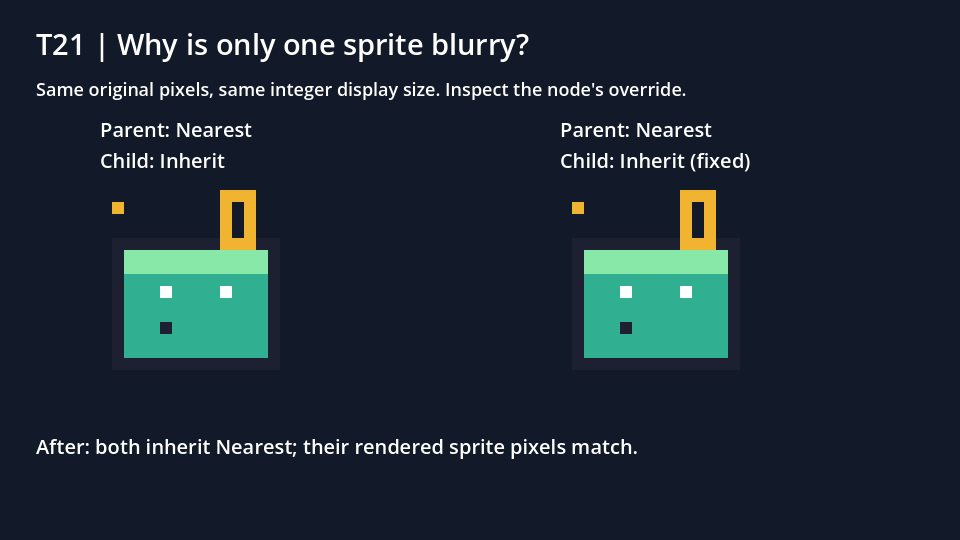
The before capture had 6 distinct rendered colors in the crisp rectangle and 950 in the Linear rectangle. After removing the override, both had 6 and their pixels matched exactly. These counts describe this fixture, not a general blur detector.
The original PNG's hash was identical before and after. This correction changed filter state without replacing, enlarging or resampling the source file.
4. Test the boundary: Inherit can still be wrong
The project then changes the ancestor to Linear while both children remain on Inherit. Both become blurred, with 950 rendered colors in each measured rectangle.
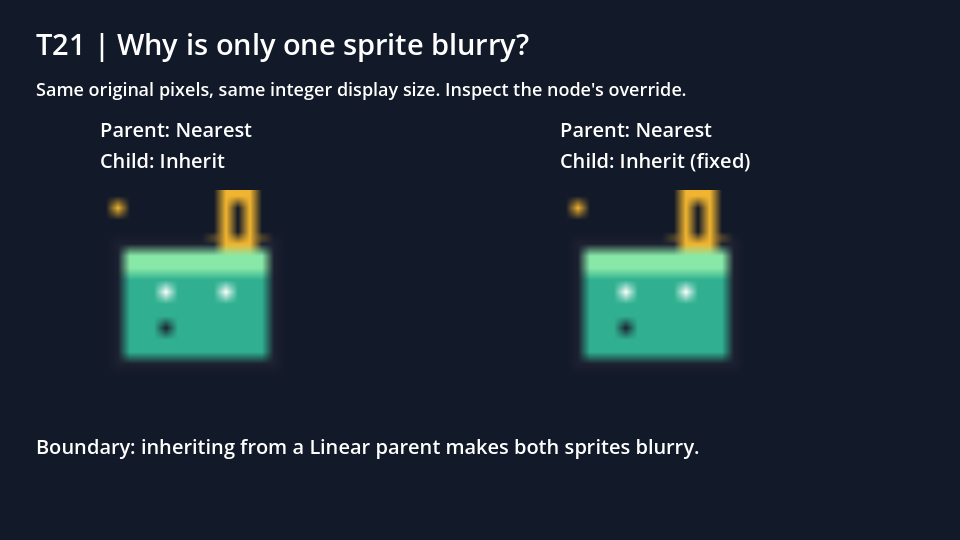
Restore Nearest on the intended ancestor, or choose an explicit per-node Nearest override where your scene needs one. Inspect the inheritance chain rather than treating Inherit as a universal fix.
This example holds the source and positions still. If the problem appears only as the window or camera moves, check viewport scaling and investigate motion separately. Correct filtering does not establish a solution to every subpixel or camera artifact.