Start here
View the sprite on both black and white with smoothing disabled. If the pale or dark border remains, inspect the RGB of pixels with partial alpha: an old background color may already be mixed into the source. Turning off smoothing cannot remove color stored in those pixels.
Use the original 16 × 16 example to distinguish a source-edge color problem from resampling, then re-export and check the corrected sprite on both backgrounds.
What you need
A transparent sprite looks pale on a dark background or dark around its edges on a light one. The downloadable CC0 example supplies clean, white-matte and dark-matte variants of the same character, plus a separate nearest/smoothed comparison.
Tested with: Chromium 154.0.8037.44 on macOS; sRGB canvas; 8× previews. Original PNG values were independently checked with Pillow 12.3.0.
1. Compare the same source on black and white
- Open the runnable comparison, or extract the project ZIP and open
index.htmllocally. - Compare the three variants across the black row, then the white row. All six previews use the same nearest-neighbor 8× enlargement.
- Look for the white-matte variant becoming too pale over black and the dark-matte variant becoming too dark over white. The changed source color remains visible even though smoothing is off.


These are enlarged original PNGs over controlled backgrounds. Download the clean source, white-matte variant or dark-matte variant to inspect their pixels in your editor.
2. Inspect a pixel with partial alpha
At source coordinate (3, 5), the three files contain the values below. Their alpha is identical. Only the RGB of partial-alpha edge pixels was changed to simulate an old matte mixed into the color while alpha was retained.
| Variant | Original RGBA |
|---|---|
| Clean | 224, 80, 48, 128 |
| White matte | 239, 167, 151, 128 |
| Dark matte | 112, 40, 24, 128 |
For a source over an opaque background, the conceptual relationship is output = source × alpha + background × (1 − alpha). A color already mixed with an old matte is mixed again against the current background. Actual channel conversion and rounding depend on the renderer.
In the tested browser, the clean and white-matte pixels rendered over black as RGB (112, 40, 24) and (120, 84, 76). Over white, the clean and dark-matte pixels became (239, 167, 151) and (183, 147, 139). The sample's measured report exposes these values.
Canvas decoding reported clean red as 223 rather than the original file's 224. Keep decoded browser values separate from original PNG bytes when inspecting a one-level color difference.
3. Test smoothing separately
- In the comparison, find the clean-source pair labeled Nearest: smoothing off and Smoothing on, quality low.
- Inspect the eye details and outer boundary. The source stays unchanged; only
imageSmoothingEnableddiffers. - For crisp integer enlargement, keep smoothing disabled. Then return to the six-panel comparison: the matte-colored edge still exists there because its cause is in the source pixels.
Inspect the recorded browser comparison
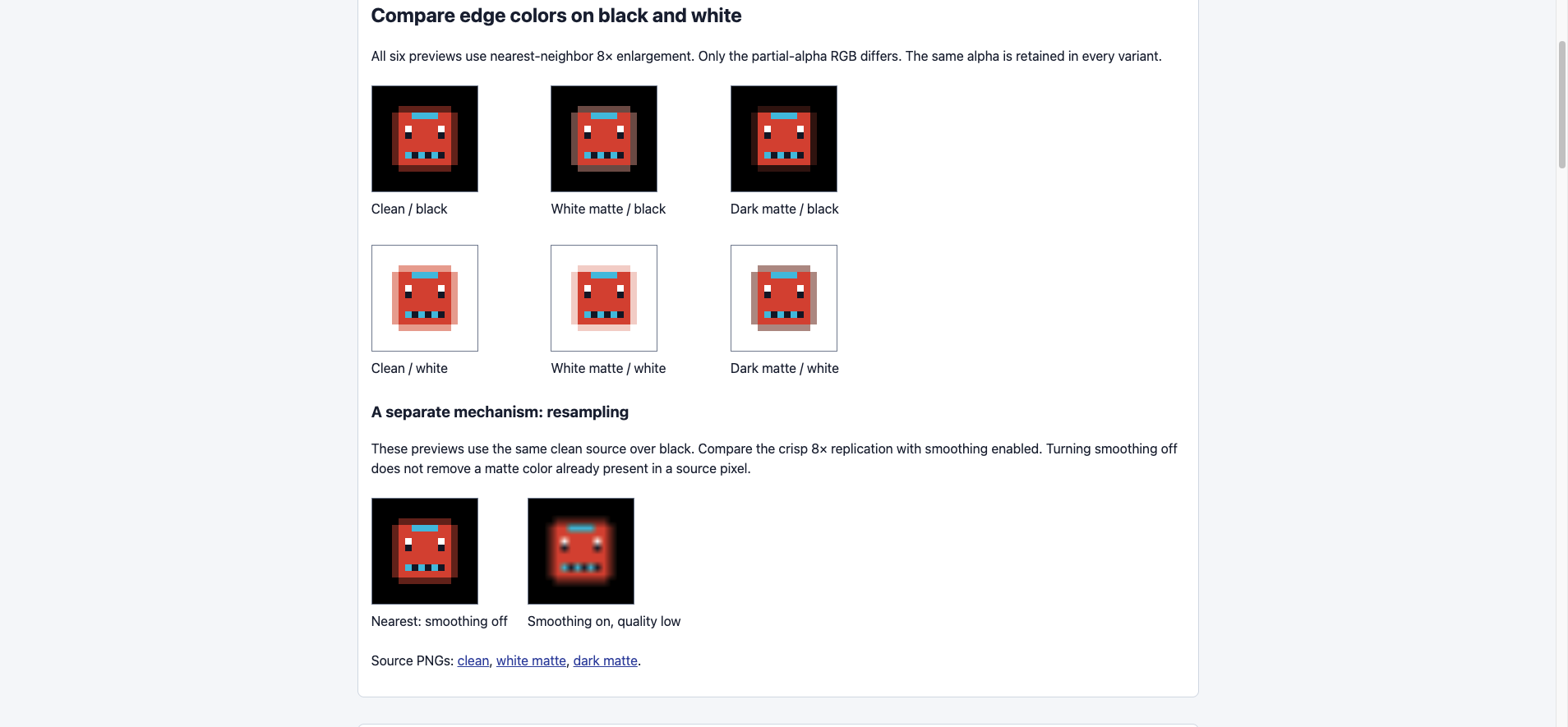
Actual Chromium capture from the supplied project, at device-pixel ratio 1. Open the runnable example to inspect each preview at its intended size.
At 8×, enabling smoothing changed 6,292 of 16,384 preview pixels in this browser. This is a result for this fixture and renderer, rather than a universal count for smoothing.
4. Correct the source export and recheck both backgrounds
Return to the unflattened artwork and correct the export or alpha/color handling that introduced the unwanted matte. Export a PNG with the intended RGB and alpha, then repeat the black/white comparison. The clean sample shows the intended soft edge on both backgrounds.
If your problem occurs only when enlarging the clean source, correct the resampling setting instead. The nearest-neighbor guide explains integer scaling and display settings.
Boundary case: partial alpha can be intentional. This clean sprite has 32 pixels at alpha 128; forcing them to transparent or opaque changes the artwork. Fully transparent RGB is invisible in ordinary compositing and cannot be diagnosed from a visible halo alone.
This controlled example does not identify every edge problem. Atlas bleed, premultiplied/straight-alpha mismatches and color management can require different corrections. A flattened image alone may not contain enough information to recover the original edge color and alpha.